Tap the Share button in the bar at the bottom of Safari.
Scroll down the list and choose Add to Home Screen.
Leave Open as Web App on, then tap Add.
On iPhone and iPad this is the only way in — no browser there can show an automatic install button.
Tap the Share button next to the address bar.
Scroll down the list and choose Add to Home Screen.
Leave Open as Web App on, then tap Add.
Chrome, Edge and Firefox on iPhone all install through this same Share menu — no browser on iOS has an automatic install button.
Open the browser menu (⋮, top right).
Choose Install app, Install or Add to Home screen.
Confirm, and the icon is added to your home screen.
Chrome and Samsung Internet usually offer this by themselves; Firefox only from the menu.
Look for the install icon at the right of the address bar.
Or open the browser menu and choose Install.
Chrome, Edge and Opera can install this site. Firefox and Safari on desktop cannot — the site works the same in a normal tab.
You are browsing inside another app, which cannot install anything.
Open the menu and choose Open in browser.
Then use Install app from the menu there.
New mock tests added every week
Every mock exam, course and bundle you need, in one place.
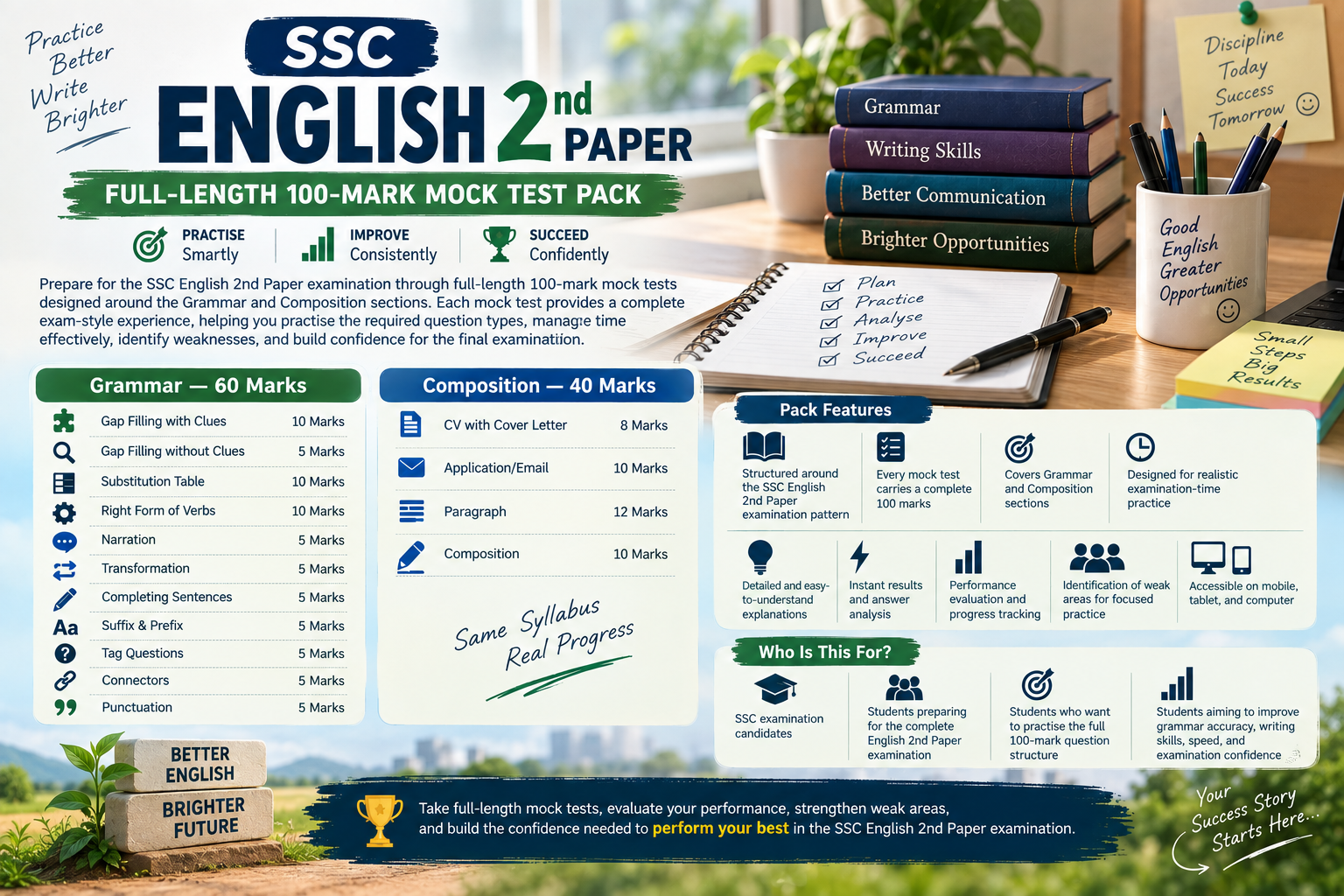
Real exam formats marked by an AI examiner that tells you exactly where you are losing points, plus full taught courses and bundles that cost less than buying each piece. Try a full mock free before you buy anything.